
Placing Orders in the Trading Simulator
The CleaRank Trading Simulator gives you five ways to enter a trade, and the one you pick decides whether you take the price on offer now or wait for a better one. The order ticket shows real market quotes with a modeled bid and ask spread, and it asks you to confirm the risk before anything is placed. This guide walks through each order type, when to use it, and how the simulator handles orders when the market is closed.
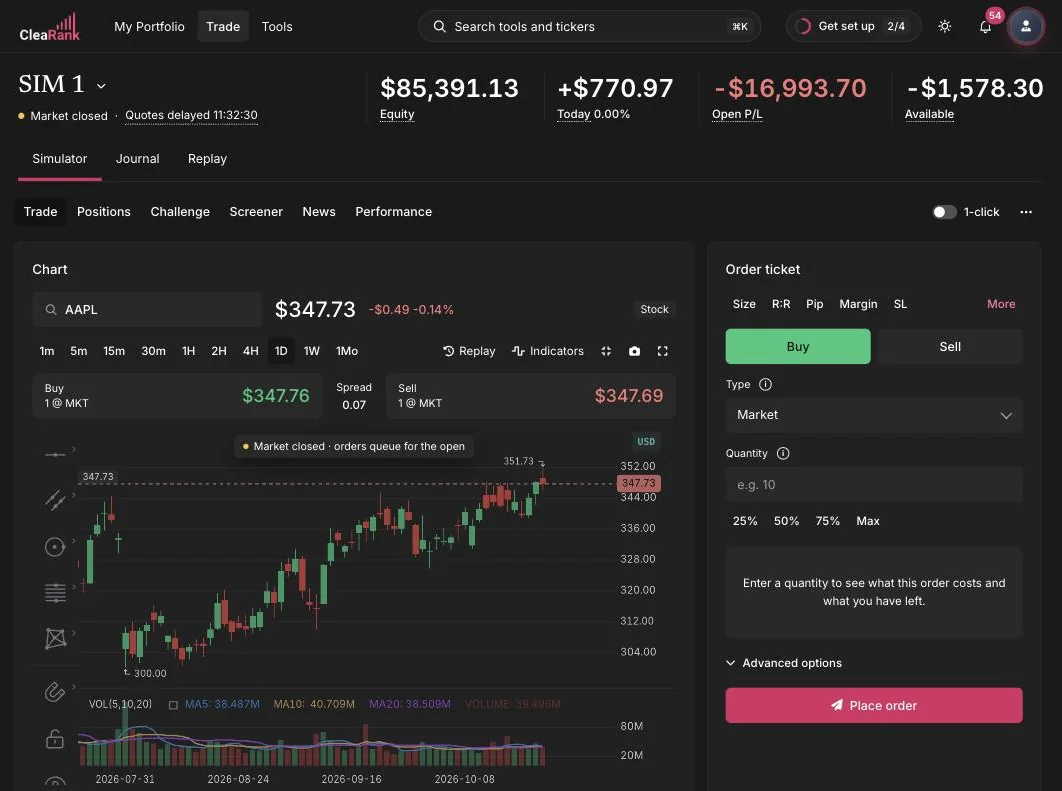
The order ticket
The Order Ticket panel shows a green BUY button and a SELL button, a Type selector, and a Quantity field. Above the chart you can see the quote: the buy (ask) price, the sell (bid) price, and the spread between them. For example, AAPL might show Buy $309.06 and Sell $309.00 with a spread of 0.06. You buy at the ask and sell at the bid, so the spread is a real cost on every round trip.
For quantity, type a number or use the 25%, 50%, 75%, and MAX buttons to size the order as a share of your available balance. Below the quantity field the ticket estimates Est. Total, Commission, and Round-Trip Cost before you commit. A row of chips at the top of the ticket (Size, R:R, Pip, Margin, SL, More) opens embedded mini-calculators that read the current chart context; see Charts and Indicators for how those work.
How the spread works here
If you plan trades around tight targets, this section changes how you size them. Prices in the simulator are real market quotes, refreshed every 30 seconds and delayed up to one minute, but the bid and ask are modeled, not pulled from a broker’s live quote feed. The simulator places them symmetrically around the live traded price: bid is the price minus half the spread, ask is the price plus half the spread.
The modeled width is consistent by asset class, so you always know what you are paying:
- Forex: about 0.01% of price. On EUR/USD near 1.0850 that is roughly 0.1 pip.
- Crypto: about 0.05% of price. On BTC at $60,000 that is roughly $30 per round trip on one unit.
- Stocks and everything else: about 0.02% of price, with a small minimum floor. On a $309 stock that is the 0.06 spread in the example above.
The cost is real even though the quote is modeled. Fills execute at the bid and the ask, so every position pays the spread going in and again coming out, and the Positions table says so in its own header: P&L is net of spread, fills execute at bid/ask. Nothing in your practice results is quietly ignoring it.
What to do about it: when you size a trade around a tight target, add a margin for the real spread you will actually face rather than the modeled one, so a 10 pip target is not erased by a 3 pip spread you never budgeted for. Once you have real fills from your own broker, run them through the Slippage Auditor to see what that broker actually charges you, then use that number when you plan.
The five order types
Market
A market order fills immediately at the current bid or ask. Use it when getting in now matters more than the exact price, for example when a setup is already moving. The trade-off: you accept the spread and the current price, whatever it is.
Limit
A limit order fills only at your chosen price or better. A buy limit below the current price waits for a pullback; a sell limit above waits for a pop. Use limits when price matters more than timing. The risk is the order may never fill if the market does not reach your level.
Stop
A stop order becomes a market order once price touches your stop level. A buy stop above the market enters on a breakout; a sell stop below the market exits a long position before a loss grows. Use stops to trade momentum or to protect a position with an automatic exit.
Stop Limit
A stop limit combines both: when the stop level is touched, a limit order is placed instead of a market order. You control the worst fill price you will accept. Use it when you want breakout entries without paying up in a fast market. The risk is that a very fast move can skip your limit and leave you unfilled.
Trailing Stop
A trailing stop follows the price at a distance you set. As the market moves in your favor the stop moves with it; if the market reverses by your trailing distance, the order triggers. Use it to lock in gains on a trend without picking an exit in advance. Model different distances first with the Trailing Stop Calculator.
The risk confirmation modal
When you press Buy or Sell, the simulator shows a confirmation modal summarizing the order before it is placed: side, symbol, quantity, order type, and cost estimates. This is your last check against fat-finger mistakes. Confirm to place the order, or cancel to go back and edit.
1-Click trading
The 1-Click toggle in the account strip skips the confirmation modal so orders are placed the moment you press Buy or Sell. It is useful when you practice fast entries or scalping. Leave it off while learning: the confirmation step exists to catch errors, and with 1-Click on there is no second chance before the order goes in.
Market hours and market-on-open
The simulator respects real market hours per asset class:
- Crypto trades 24/7, so orders can fill at any time.
- Forex trades 24/5, around the clock on weekdays.
- US equities follow exchange hours, including market holidays and early closes.
When a market is closed, the chart freezes and shows a Market Closed badge, and the account strip indicator turns to Market Closed. A market order placed while the market is closed is not rejected: it queues as market-on-open and fills at the next open. The chart shows a notice: “Market closed · orders queue for the open.” Pending market-on-open orders appear in the Working Orders list in the Positions tab, where you can cancel them before the open.
Place your first practice order
- Pick a symbol. Type it into the chart’s symbol box or click a row in the watchlist, for example AAPL or BTC/USD.
- Choose a side and type. Select Buy or Sell, then pick an order type. Market is the simplest place to start.
- Set the quantity. Enter a number of shares or units, or tap 25%, 50%, 75%, or MAX. Check the Est. Total below.
- Review and confirm. Press Buy or Sell, read the risk confirmation modal, and confirm. Your position appears in the Positions tab, and the closed trade will land in your Trade Journal automatically.
Frequently asked questions
What is the difference between a stop order and a stop limit order?
A stop order becomes a market order when your stop level is touched, so it always fills but the price is not guaranteed. A stop limit becomes a limit order instead, so the fill price is controlled but a fast market can skip your limit and leave the order unfilled.
Why did my order not fill immediately?
Limit, stop, and stop limit orders wait for the market to reach your level, and any market order placed while the market is closed queues as market-on-open. Check the Working Orders list in the Positions tab to see pending orders and cancel them if needed.
Can I trade when the market is closed?
Crypto trades 24/7 and forex trades 24/5, so those markets are usually open. For US equities outside exchange hours, market orders queue as market-on-open and fill at the next open. The chart freezes with a Market Closed badge until trading resumes.
What does the spread mean in the simulator?
The spread is the gap between the buy (ask) price and the sell (bid) price. You buy at the ask and sell at the bid, so it is a built-in cost on every round trip, and your practice P&L is already net of it. Prices are live, but the bid and ask are modeled: the simulator places them symmetrically around the live traded price at about 0.01% of price for forex, about 0.05% for crypto, and about 0.02% for stocks and everything else. Real broker spreads vary by broker and account type and widen around news releases and at the session open, so treat the simulated spread as a floor rather than a forecast, and add a margin for the real spread when you size a trade around a tight target.
Is the simulated spread the same as my broker’s spread?
No. The traded price is a real market quote, refreshed every 30 seconds and delayed up to one minute, but the bid and ask are a consistent simulation built around it, not a live quote from any broker. Your broker’s spread depends on the broker and the account type, and it widens around news releases and at the session open. Use the simulated spread as a floor for planning, and run your real broker fills through the Slippage Auditor to see what you are actually charged.
Is 1-Click trading safe to use?
1-Click skips the risk confirmation modal, so orders go in instantly. It is worth using once you are comfortable with the ticket, but while learning, keep it off so the confirmation step can catch sizing or side mistakes.
Try it yourself
Open the simulator and practice each order type with a virtual practice balance.
Related articles
CleaRank tools are for education and analysis. Nothing in this guide is financial advice.