
Managing Your Simulator Accounts
CleaRank gives the Trading Simulator multiple simulator accounts, each with its own balance, trade history, and statistics. Every closed trade counts toward that account’s win rate, profit factor, and equity curve, and mirrors into your journal automatically. This guide covers creating, renaming, resetting, and deleting accounts, and what the figures in the account strip mean.
Why run more than one simulator
A record is only useful if everything in it belongs together. Once you start testing a second idea inside the same simulator, your profit factor stops describing either idea and starts describing an average of both. Creating a separate simulator is the cheapest way to protect a result you have worked for.
The three cases where it pays off immediately are testing a new setup you are not confident in yet, running a prop firm style rule set in Challenge Mode without unrelated trades affecting the drawdown figures, and practicing a different asset class where your normal position sizing does not apply.
How many simulators you can run at once, and the combined starting balance across all of them, depend on your plan. The Free plan runs one simulator, Pro up to three, and Unlimited has no set limit; each account starts with a virtual practice balance of up to $100,000, or up to $500,000 on Unlimited. See Plans and Billing.
Creating and switching simulators
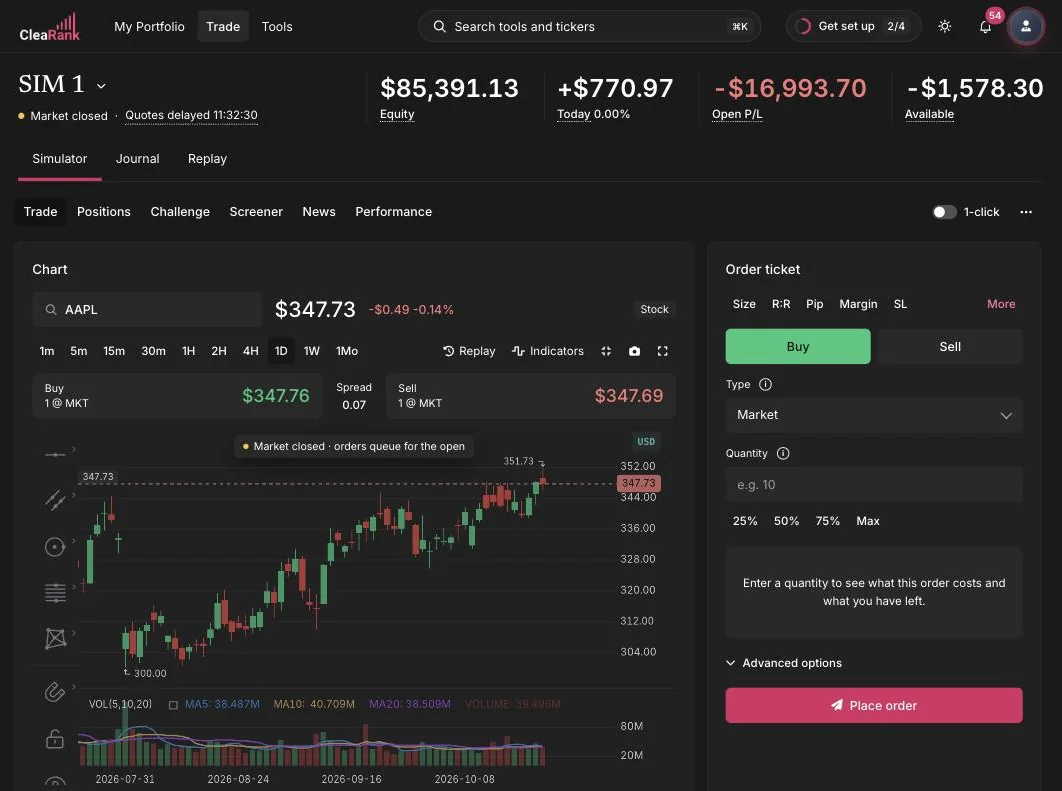
The account chip at the top of the tool shows the simulator you are trading and its current balance. If you have more than one, each gets its own chip, and clicking a chip switches to it. Everything below the strip, positions, orders, performance and the paired journal, follows the simulator you have selected.
New Simulator opens a short dialog with two fields and one bar:
- Name, a short label that has to be different from your other simulators. Name it after the experiment, for example “Breakout test”, rather than after the amount.
- Starting balance, the virtual practice balance the simulator opens with. The minimum is $1,000 and it steps in thousands, with quick chips for common sizes and one that uses whatever budget you have left.
- A budget bar showing how much of your plan’s combined balance you have already committed, and what it will be after this simulator is created. If less than $1,000 of budget remains, the dialog tells you to free some up by deleting or resetting an existing simulator.
A matching journal is created alongside the new simulator, so its trades mirror into their own journal instead of mixing into your main one.
Rename, reset balance, delete
The three dot menu on an account chip holds the three actions that change the simulator itself rather than what is in it.
- Rename. Changes the label only. Trades, equity history and the paired journal are untouched, so rename freely when an experiment turns into something you want to keep.
- Reset balance. Opens the same dialog as the Reset button in the strip, covered in the next section. It is destructive, so read that section before you use it.
- Delete simulator. Archives the simulator and returns its starting balance to your plan’s budget so you can use it elsewhere. Before it does anything the dialog shows the simulator’s starting balance, how much of it comes back to your budget, and how many open positions will be closed at market along with the estimated profit or loss of closing them. Trades, equity history and journal entries stay in your archive.
You cannot delete your only simulator. If you want a clean slate and you only have one, create a second one first or use Reset instead.
The account strip explained
Four numbers sit across the top of the simulator and they answer four different questions. Traders who only watch one of them usually watch the wrong one.
- NET LIQ, net liquidation value. What the simulator is worth if you closed everything right now: cash, plus margin, plus the unrealized profit or loss on your open positions. This is the number to track over time, because cash on its own moves for reasons that have nothing to do with whether you are trading well.
- LIQ P/L. The total unrealized profit or loss across your open positions. It always equals the sum shown on the Positions tab, and it is net of the spread because fills execute at the bid and the ask. A small negative reading immediately after you open a position is normal, that is the spread you just crossed.
- MARGIN. The cash your open positions have locked up. It is not a loss and it is not a fee, it is simply unavailable while those positions are open.
- AVAILABLE. What is left to open new positions with.
What a healthy Available looks like
Read Available as a share of Net Liq, and treat it as a buffer rather than a target. There is no universal safe level to quote: on a real account the margin level at which a broker warns you, and the level at which it closes positions for you, are set by that broker (commonly somewhere around 100 percent and 50 percent) and they differ from firm to firm. What is consistent is the shape of the problem. The more of your equity is committed as margin, the smaller the ordinary move against you needs to be before it starts making decisions for you, and at zero Available you cannot open anything and have nothing left to absorb whatever happens next. The fix in both cases is to close something or cut size now, not to wait for the market to help.
What actually keeps Available healthy is position size, not luck. Size each trade so the loss at your stop stays inside the standard band of 1 to 2 percent of equity. At 1 percent per trade, ten losses in a row costs about 10 percent of the account and is recoverable. At 5 percent per trade the same run costs roughly 40 percent, which is not. The Position Size Calculator and the Margin Calculator both read the chart you are looking at, so you can check both numbers before the order goes in.
Reset and Export
Reset exists for a specific moment: the practice record no longer represents how you trade, usually because the first fifty trades were you learning where the buttons are. Rather than let that noise sit in your statistics forever, you clear it and start the measurement properly.
What Reset wipes, for the selected simulator only: every open position, every pending order, every closed trade and the entire equity history. The simulator is restored to its starting virtual practice balance, and you can set a different starting figure at the same time. It also removes the automatically mirrored simulator trades from that simulator’s paired journal, because those rows are copies of the trades you just deleted.
What the journal keeps: everything you wrote yourself. Journal entries and notes, playbooks and setups, your trading rules and goals, and any trade you typed in by hand or imported from a CSV file. A reset clears the practice record, not your written work.
Export downloads your simulator trades as a CSV file, dated in the filename. Use it to keep a copy of a practice run outside CleaRank, or to open the trades in a spreadsheet. If the simulator has no trades yet, it tells you there is nothing to export. You do not need the file to audit a rule set, because the Prop Firm Auditor can read a simulator account directly.
The market indicator and the LIVE badge
Two small indicators sit on the right of the strip, and they mean different things.
Market Open or Market Closed, with a colored dot, is the session state for the asset class you are looking at. Crypto trades all week, forex trades around the clock on weekdays, and equities follow exchange hours including holidays. When it reads Market Closed the chart freezes with a badge, and a market order is not rejected: it queues as market-on-open and fills at the next open. See Placing Orders.
LIVE with a rate beside it, for example 1.0/s, tells you the price on screen is ticking smoothly between refreshes, the way price moves on a live platform. The rate is how many of those on-screen ticks are drawn each second, and it drops to 0/s when there is nothing to animate, typically when the market is closed. It is a display indicator, not a data quality score, and it is not what your trades are priced against: your fills and your profit and loss are CleaRank’s own valuation from real market quotes.
Set up a second simulator
- Decide what it is for, in writing. “Test fifteen minute breakouts on index ETFs” is something you can judge later. “Trade better” is not.
- Create it. Press New Simulator, name it after the experiment, and set the starting balance close to the account you actually intend to trade.
- Trade only that idea in it. The entire value of a separate simulator is in what you keep out of it.
- Judge it on the Performance tab, not on the balance. A profit factor above 1.0 means the idea is net profitable and 1.5 or better is a comfortable edge, but neither number means much until you have a few dozen closed trades. See Performance Analytics.
Frequently asked questions
Does resetting a simulator delete my journal?
No. A reset removes the simulator trades that were mirrored automatically into that simulator’s paired journal, because those rows are copies of the trades being deleted. Everything you wrote yourself stays: journal entries and notes, playbooks, rules, goals, and any trade you typed in or imported from CSV.
How many simulators can I have?
It depends on your plan. The Free plan runs one simulator, Pro up to three, and Unlimited has no set limit; each account starts with a virtual practice balance of up to $100,000, or up to $500,000 on Unlimited. The New Simulator dialog shows a budget bar with how much you have committed and how much is left.
Can I delete my only simulator?
No. The simulator refuses, because you would be left with nothing to trade. Create a second simulator first, or use Reset to start fresh on the one you have.
What is the difference between Net Liq and Available?
Net Liq is what the account is worth if you closed everything right now, including the unrealized profit or loss on open positions. Available is only the part you can still open new positions with, so it excludes the cash your existing positions have locked up as margin.
Why does the LIVE badge show 0/s?
Because nothing is being animated, which usually means the market for that symbol is closed. The badge describes the on-screen price animation only. It has no effect on how your orders are priced or how profit and loss is calculated.
Try it yourself
Open the simulator, create a second account, and keep your next experiment separate.
Related articles
CleaRank tools are for education and analysis. Nothing in this guide is financial advice.