
Account Settings and Preferences
CleaRank Settings holds your profile, trading defaults, notifications, privacy and cookies, billing, and appearance across six tabs. This page explains each setting, including the defaults that pre-fill order tickets and calculators, and how account deletion and its grace period work.
How saving works
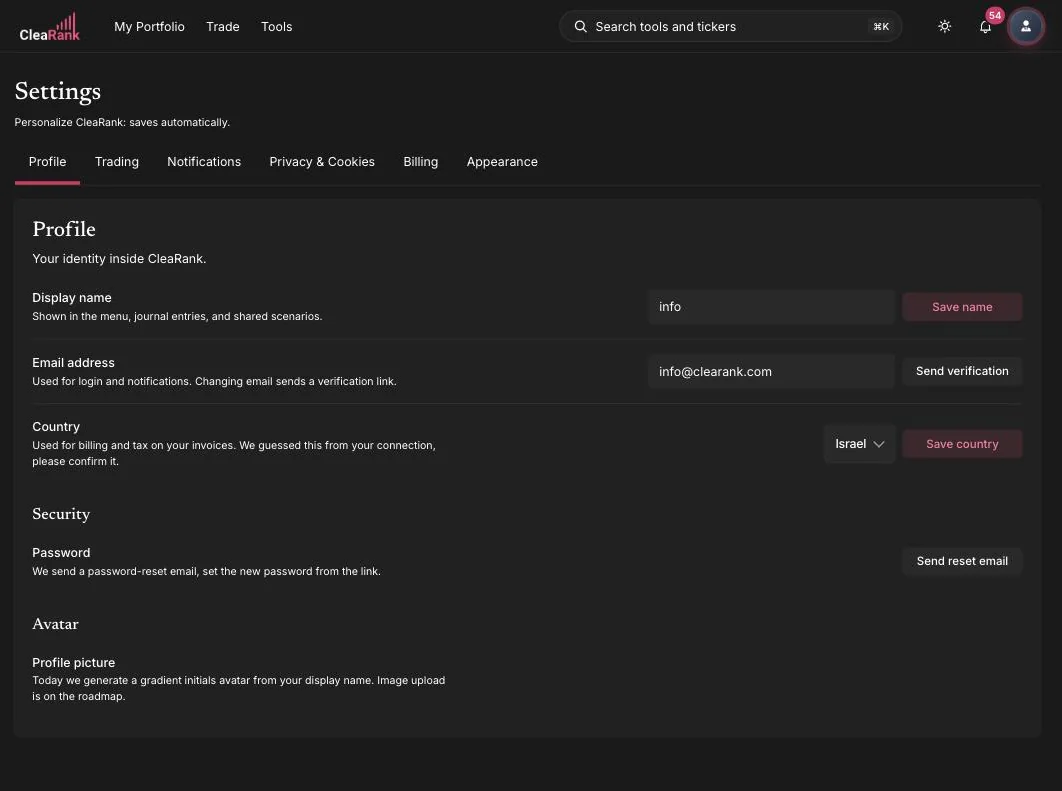
Open Settings from the account menu (your avatar in the top-right corner), or go straight to clearank.com/settings. The subtitle states the rule: “Personalize CleaRank: saves automatically.” There is no global Save button and nothing to submit; every switch and dropdown applies the moment you change it. The one exception is your display name, which has its own Save name button. Six tabs run across the page.
Profile
“Your identity inside CleaRank.” What the product calls you, and how you get back into your account.
Display name
Shown in the menu, journal entries, and shared scenarios, so it travels with anything you export or share. Pick something you are happy to see on a document you hand to a coach or a prop firm reviewer. Type the new name, then click Save name; nothing is written until you do.
Email address
Used for login and notifications. Changing email sends a verification link, so click Send verification and confirm from the new inbox before the change takes effect. Change it if your CleaRank address is one you never open, because price alerts, digests and billing receipts all follow this field.
Security: password
There is no in-page password field, by design. Click Send reset email and we send a password-reset email; you set the new password from the link. Do it immediately if you have ever reused that password on another site.
Avatar: profile picture
Your profile picture is a gradient initials avatar generated from your display name. Nothing to upload: change the display name and the initials follow.
Trading
“Defaults applied across the simulator and journal.” The tab that saves the most keystrokes, and the one with the largest effect on how you actually trade.
Default risk per trade
A percentage, used to pre-fill calculators (Position Size, Risk & Reward) and simulator order tickets. It is the number every new position starts from unless you override it.
1 to 2 percent is the standard band. At 1 percent per trade, ten consecutive losses costs about 10 percent of the account, which is recoverable. Set the number higher and the same streak takes a far larger bite out of the balance, and losing streaks of that length happen to sound strategies too, which is why the band sits where it does.
If your positions keep feeling too big, the fix is not willpower during the trade, it is this field before it. Lower the number and every ticket starts smaller by default.
Default chart timeframe
1m, 5m, 15m, 1h, 4h or 1d, the first-load timeframe for the simulator chart. Set it to the timeframe you actually trade so the chart opens ready: 1m or 5m for scalping, 15m or 1h for intraday, 4h or 1d for swing. If you re-select it within five seconds of opening the simulator every day, this is set wrong.
Show DOM ladder on order ticket
The cumulative depth column on the order ticket. Leave it on when you have the screen width and want to see where size rests around your entry. Hide it on smaller screens for more chart real estate: on a 13-inch laptop or a phone, switching it off is the fastest way to get a readable chart back.
Default journal
When you log a manual trade, this is the pre-selected journal. If you keep one journal per strategy or per evaluation, point this at the one you write to most. It stops manual entries landing in the wrong book, which quietly corrupts two sets of statistics at once.
Simulator hotkeys
The tab also carries a read-only Simulator hotkeys reference. The keys are not remappable, so this is here to be learned rather than configured:
- B Buy
- S Sell
- L Toggle Long/Short
- R Reverse position
- F Add to favorites
- T Tools drawer
- Cmd+K Quick search
- ? Show all hotkeys
Full guide: Keyboard shortcuts.
Notifications
“How and when CleaRank reaches you.” Reachable for anything that needs a decision, silent for everything else.
Email: Performance digest
Off, Daily or Weekly. A summary of your equity, P&L and journal activity. Weekly suits most people: a daily P&L email based on a handful of trades encourages reacting to noise, and a week is the shortest window in which a move in your numbers is likely to mean something. Daily earns its place during an active evaluation period, when one bad session can put a rule at risk. Off is the honest answer if you review inside the app anyway.
Email: Product updates & release notes
Feature launches, market data improvements, important changes. Low volume. Leave it on unless you want zero email from us, because this is where changes to how the tools behave get announced.
In-app: Price alert delivery
In-app only, Email only or Both, controlling where price-alert triggers show up. In-app only if you sit with the tab open through your session. Email only or Both if you set alerts so you can walk away from the screen, which is the point of setting them: an alert that fires into a closed tab has done nothing for you.
In-app: Streak nudges
A friendly reminder if your streak is about to break. Turn them off if you find them noisy. A nudge that makes you open a position purely to keep a counter alive is working against you.
Onboarding: Replay product tour
Click Replay tour to walk through the dashboard step-by-step again. Handy after a major release, and the fastest way back in after a break. More detail: Notifications and streaks.
Privacy & Cookies
“Control how we use your data and analytics.” Consent, analytics, export and deletion.
Cookie consent: Current consent
Shows the choice currently in force. It is shared across clearank.com and the dashboard, so you make it once rather than per site, and Global Privacy Control is honored: if your browser sends the GPC signal we respect it without you clicking anything. Click Reopen banner to bring the consent banner back and change your mind.
Analytics opt-out
Stops product-usage analytics events. It does not affect billing or sign-in events, which are necessary to run your account. Nothing stops working when you opt out, so switch it on if you would rather not contribute usage data.
Your data: Export my data
A single ZIP containing your trades, journal, equity history and preferences.
Your data: Delete account
Click Schedule deletion… to start a soft delete with a 30-day grace period. Nothing is destroyed on day one. During those 30 days you can return to Settings, Privacy & Cookies and click Cancel deletion, and simply signing back in also cancels the request automatically. After 30 days the removal is permanent: it covers your trades, journal entries and preferences, and it cannot be undone.
Billing
“Plan, payment method, and invoices.” Your current plan, an invoices list, and a tier comparison.
Invoices
The INVOICES list is empty until your first charge clears. From then on every receipt appears here.
Tier comparison
Free, $0. Every calculator and research tool, 1 simulator account, 1 trading journal, 1 portfolio with up to 10 holdings. No card needed.
Pro, $172.00 a year ($103.20 in your first year). Up to 3 simulator accounts, 3 trading journals, 3 portfolios with up to 30 holdings each and 1 direct broker connection, plus CleaRank Financial AI with 30 requests a day, the AI Coach, saved scenarios, PDF and CSV export and the Prop Firm Auditor.
Unlimited, $258.00 a year ($154.80 in your first year). Everything in Pro, with no set limit on simulator accounts, journals, portfolios, holdings or direct broker connections, brokers that connect through an aggregator, and CleaRank Financial AI with no set daily limit, subject to fair use.
Terms
Pro and Unlimited are billed yearly in USD; customers in Israel pay in ILS, including VAT. Cancel within 14 days of your first payment for a full refund; otherwise, cancelling keeps your access until the end of the period you have already paid for. Full detail: Plans and Billing.
Appearance
“Theme and display density.” Four controls, all instant.
Theme
Light, Dark or System. System follows your operating system’s light/dark setting, so pick it if your machine already switches at sunset. Dark suits long sessions in a dim room; Light reads better in a bright office and on printed exports.
Reduced motion
Trims transitions and animations across the dashboard. Turn it on if you are sensitive to motion, or if you prefer panels to change state instantly.
Compact density
Tighter padding in tables and lists, fits more on screen. The clearest case is a laptop where your positions table needs a scroll to reach the last row; compact usually fits it in one view, which matters when you are checking exposure at a glance.
Allow pinch-zoom
Enables pinch-to-zoom on mobile. Off by default for an app-like feel, but turn it on if you have low vision or need to read a dense table on a phone.
Frequently asked questions
Do I need to press Save?
No. Settings save automatically as you change them, and there is no global Save button. The one exception is your display name, which has its own Save name button. Email and password have buttons too, because they send a verification or reset link rather than saving a value.
What should I set Default risk per trade to?
1 to 2 percent is the standard band. At 1 percent per trade, ten consecutive losses costs about 10 percent of the account, which is recoverable. If your positions keep feeling too big, lower the number here and every order ticket and calculator starts from a smaller default.
Can I export all my data yet?
Not from Settings. The Export my data button currently reads Export (soon) and the feature is not yet available. In the meantime you can still export tool by tool: all 11 calculators export to PDF and CSV, other tools vary (several export JSON only), and journals export trade history as CSV.
Can I undo an account deletion?
Yes, within the 30-day grace period. Return to Settings, Privacy and Cookies and click Cancel deletion, or simply sign back in, which cancels the request automatically. After 30 days the removal is permanent and cannot be undone.
Can I change the simulator hotkeys?
No. The Simulator hotkeys block on the Trading tab is a read-only reference and the keys are not remappable. Press ? inside the simulator to show all hotkeys.
Make it yours
Sign in and tune CleaRank to the way you work.
Related articles
CleaRank tools are for education and analysis. Nothing in this guide is financial advice.